> ## Documentation Index
> Fetch the complete documentation index at: https://docs.qa.tech/llms.txt
> Use this file to discover all available pages before exploring further.
# POC Mobile Setup Checklist
> Prepare native iOS and Android apps before a Proof of Concept with QA.tech
Before a mobile Proof of Concept (POC) kickoff, verify the items below are in place. QA.tech uploads your build, configures the project, and runs the same checks during setup — app launch, backend connectivity, and login — before you start creating tests.
See the [Web POC Setup Checklist](/getting-started/poc-setup-checklist) for
staging URLs, email whitelisting, and browser authentication.
***
## Before kickoff — verify these are ready
| Your team verifies | QA.tech verifies during setup |
| -------------------------------------------------- | --------------------------------------- |
| Mobile testing enabled for your org | Mobile application created |
| Backend mobile IPs allowlisted | App reaches staging API |
| Simulator `.app` or `.apk` builds and runs locally | Build uploaded and launches on emulator |
| Test accounts log in on staging | Login smoke test passes |
***
## What to verify, and effort if not ready
Work through these in order. Backend IP allowlisting usually takes the longest when IT is involved.
| Priority | Verify this is in order | Effort if not ready | Details |
| -------- | --------------------------------------------------- | ------------------- | --------------------------------------------------- |
| 🔴 **1** | Mobile testing is enabled for your organization | Minutes | [Enable mobile testing](#1-enable-mobile-testing) |
| 🔴 **2** | Your backend allows QA.tech mobile testing IPs | 1–5 days (IT) | [Backend network access](#2-backend-network-access) |
| 🟠 **3** | Simulator `.app` (iOS) or `.apk` (Android) is ready | Hours | [App build](#3-app-build) |
| 🟡 **4** | Dedicated test accounts log in on staging | Hours | [Test accounts & auth](#4-test-accounts--auth) |
| 🟢 **5** | QA.tech project is configured with your build | Minutes | [QA.tech project setup](#5-qatech-project-setup) |
***
## 1. Enable mobile testing
Mobile testing is enabled per organization. Contact [support](mailto:hi@qa.tech) or your QA.tech contact to enable it before the POC.
***
## 2. Backend network access
**Biggest blocker for mobile.** Your app may install and launch fine, but
tests fail with network errors or login failures if your API backend blocks
QA.tech traffic.
Mobile tests run on cloud emulators. API calls from the app exit through a **separate set of IP ranges** from web testing.
### Mobile testing IPs
Get the current list from [**Settings → Network**](https://app.qa.tech/current-project/settings/network) — see the **Mobile Testing IP Whitelist** section. Mobile testing uses different IP ranges than web testing.
IP addresses can change. Always use the live **Mobile Testing IP Whitelist**
in Settings — never rely on a static copy.
Add those ranges wherever your mobile backend enforces access:
* Backend firewall or security group (AWS, GCP, Azure)
* API gateway allowlist or rate-limiting rules
* VPN / zero-trust gateway (Tailscale, Cloudflare Access, Zscaler)
**Forward to IT:** [Email pre-filled request to your IT team](mailto:?subject=Whitelist%20QA.tech%20mobile%20testing%20IPs\&body=Hi%2C%0A%0AWe%20need%20to%20whitelist%20QA.tech%27s%20mobile%20testing%20IP%20ranges%20so%20their%20automated%20testing%20can%20reach%20our%20mobile%20app%20backend%20during%20our%20POC.%0A%0ACopy%20the%20current%20mobile%20IP%20ranges%20from%20Settings%20%E2%86%92%20Network%20\(Mobile%20Testing%20IP%20Whitelist\)%3A%0Ahttps%3A%2F%2Fapp.qa.tech%2Fcurrent-project%2Fsettings%2Fnetwork%0A%0AAdd%20those%20CIDR%20ranges%20to%20our%20backend%20firewall%2FAPI%20gateway%20allowlist.%0A%0ADocs%3A%20https%3A%2F%2Fdocs.qa.tech%2Ftest-features%2Fmobile-app-testing%23network-access%0A%0AThanks)
Or send the request to your contact person at QA.tech, who can help coordinate with your IT team.
### Your team verifies
* The app can reach your staging API from outside your corporate network
* IT has applied the mobile IP allowlist to the correct backend endpoints
### QA.tech verifies during setup
* App launches on the emulator and loads past the splash screen
* Login and API-dependent flows complete without network errors
See [Mobile App Testing — Network Access](/test-features/mobile-app-testing#network-access) and [IP Access](/configuration/ip-access-control).
***
## 3. App build
Mobile testing requires a **simulator or emulator build** — not an App Store or Play Store distribution build.
Build for **iOS Simulator** and compress the `.app` as `.zip` or `.tar.gz`.
```bash theme={null}
xcodebuild -scheme '{scheme_name}' \
-sdk iphonesimulator \
-configuration Debug
```
Locate the `.app` in `build/Debug-iphonesimulator/`, then:
```bash theme={null}
zip -r AppName.zip AppName.app
```
Upload the `.zip` (max 4 GB). App Store `.ipa` files are not supported.
Build an **APK** — not an `.aab` bundle.
```bash theme={null}
./gradlew assembleDebug
```
Find the APK in `{module}/build/outputs/apk/`. Upload the `.apk` (max 4 GB).
To convert an `.aab` to `.apk`, use [bundletool](https://developer.android.com/tools/bundletool) with `--mode=universal`.
Tests run on cloud iOS Simulators and Android Emulators. Physical device
testing is coming soon.
Full build instructions: [Mobile App Testing — Preparing Your App Build](/test-features/mobile-app-testing#preparing-your-app-build).
### Your team verifies
* The build installs and launches on a local simulator/emulator
* The build points at your staging backend (not production)
***
## 4. Test accounts & auth
Same principles as web testing:
* Create dedicated staging accounts for each role
* Verify login works on a local emulator before sharing credentials
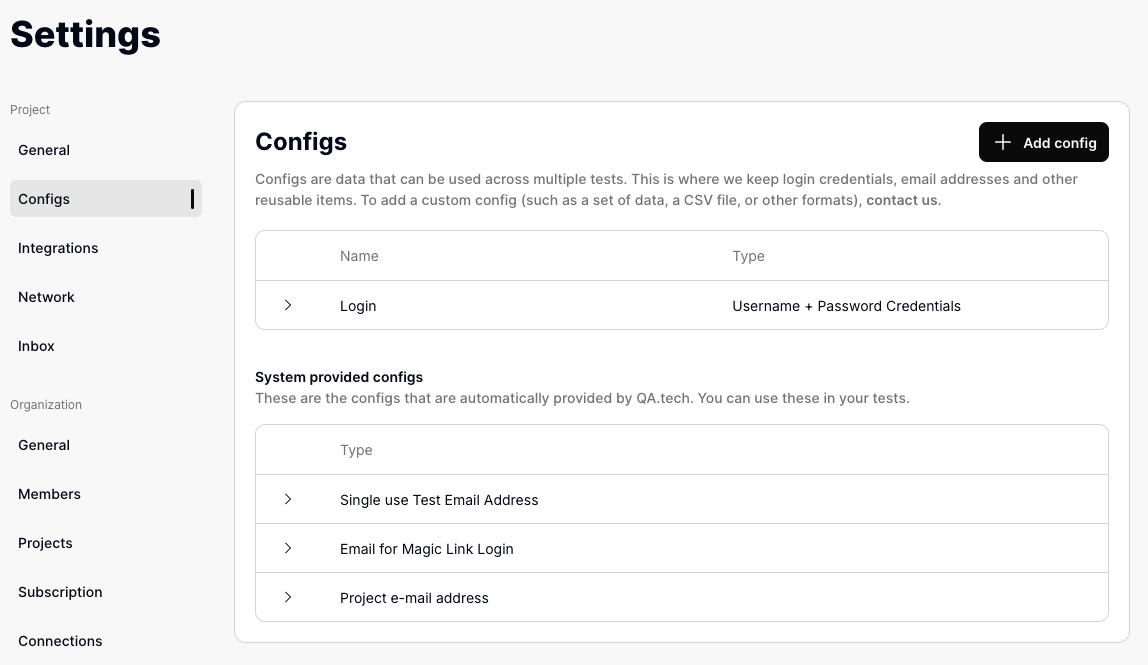
* Share credentials with QA.tech for [Configs](/core-concepts/configs), or send them to your contact person at QA.tech who will add them for you
 If your app uses email-based auth, also complete the [email whitelisting steps](/getting-started/poc-setup-checklist#3-email-delivery) from the web checklist.
***
## 5. QA.tech project setup
QA.tech handles this during onboarding:
[**Settings → Applications &
Envs**](https://app.qa.tech/current-project/settings/applications) → new
application → type **Mobile App**
Select **iOS** or **Android** and name the environment (for example,
Staging). No URL is required.
iOS: `.zip` / `.tar.gz` with simulator `.app` · Android: `.apk`
QA.tech verifies the app launches, can log in, and reaches your backend.
***
## Getting help
Contact [QA.tech Support](https://qa.tech/contact) or your QA.tech contact with your platform (iOS/Android), staging API URL, and how your backend is protected.
If your app uses email-based auth, also complete the [email whitelisting steps](/getting-started/poc-setup-checklist#3-email-delivery) from the web checklist.
***
## 5. QA.tech project setup
QA.tech handles this during onboarding:
[**Settings → Applications &
Envs**](https://app.qa.tech/current-project/settings/applications) → new
application → type **Mobile App**
Select **iOS** or **Android** and name the environment (for example,
Staging). No URL is required.
iOS: `.zip` / `.tar.gz` with simulator `.app` · Android: `.apk`
QA.tech verifies the app launches, can log in, and reaches your backend.
***
## Getting help
Contact [QA.tech Support](https://qa.tech/contact) or your QA.tech contact with your platform (iOS/Android), staging API URL, and how your backend is protected.