

Looking to provide context documents to the AI during test creation? See
Uploading Files and
Documents for
uploading PDFs and specs to chat conversations.
Default Test Files
QA.tech provides a set of default test files that are available for all tests:
Each image shows a different animal and prints its own resolution, so you can tell from a screenshot which file the agent uploaded.
These files are automatically available to the AI agent during test execution.
Custom File Uploads
For testing specific file import features or custom file requirements, you can create file upload configs. Custom files are stored in Supabase storage and made available to the agent during test execution.1
Navigate to Configs
Go to Settings → Configs in your project dashboard
2
Create File Upload Config
Click Add config and select File Upload
3
Upload Your File
In the File Upload field, click to upload or drag and drop your test file
(max 250MB)
4
Save Configuration
Enter a config name and click Save
5
Add to Test Case
Edit your test case, go to Settings → Configs, and select your file
upload config
Files from chat
The QA.tech assistant can create a File Upload config from a file you attach to the conversation. It can also generate JSON, Markdown, CSV, plain-text, HTML, and YAML files for a test. Generic JSON and TXT uploads can use the defaultsample.json and sample.txt files instead. Use the config form when the
required file is not attached and cannot be generated by the assistant.
How Custom Files Work
When a test runs with a file upload config:-
File input elements: When the agent clicks a file input (
<input type="file">), a custom file chooser UI appears showing:- Your custom uploaded files from configs
- The default test files if no custom files match
- Files are automatically filtered based on the input’s
acceptattribute
- File selection: The agent selects a file from the chooser UI, and the file is uploaded to your application
- File storage: Custom files are stored in Supabase storage and downloaded to the browser session when needed
Supported File Types
Any file type is supported - there are no MIME type or file extension restrictions. The File Upload config accepts files of any type up to 250MB in size. During test execution, files are filtered based on the HTML input element’saccept attribute, so the agent will only use files that match your application’s input restrictions.
File Selector
Using javascript we catch the event that triggers a file selector and renders a custom file selector. This allows us to upload files from configs.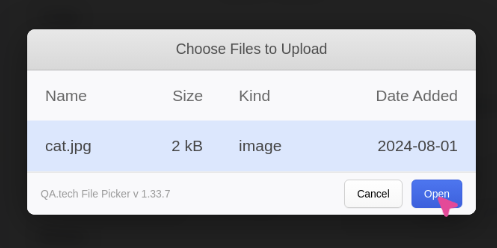
Drag and Drop
The agent supports drag-and-drop file uploads for dropzone elements using theselectFile tool. When the agent encounters a dropzone (an element that accepts drag-and-drop events), it can dispatch a drop event with the file data.
Current limitations:
- Drag-and-drop support is currently limited to
cat.pdfandcat.jpg - Custom file uploads from configs work through file input elements (click to trigger the file chooser UI), not via drag-and-drop
- If you need to test drag-and-drop with custom files, use file input elements instead of dropzones
File Type Restrictions
When your application has input restrictions (e.g., only accepting .csv files), our AI agent will automatically:- Read the
acceptattribute from the HTML input element - Filter available files to match the allowed MIME types, wildcards (e.g.,
image/*), or file extensions - Only present files that match your application’s restrictions in the file selector